Converting Markdown to PDF, step by step
- The preview above is the PDF: what you see there is what prints.
- Click print, then choose Save as PDF as the destination.
- Paper size, margins and scale belong to the browser's print dialog, not to this page.
- Nothing is uploaded, so contracts and unreleased drafts are safe here.
You have already done the hard part. The rest of this page explains what the browser just did, how to rescue a PDF that came out wrong, and when a different tool would serve you better.
The four steps, start to finish
- Get your Markdown into the box. Type it, paste it, or drop in the contents of a
.mdfile. Headings become real headings, tables get borders, and the hashes and asterisks disappear. - Read the preview like a proof. If a section looks wrong on screen, it will look wrong on paper. This is the moment to catch an open code fence or a broken table.
- Click print. The browser's print dialog opens. Choose Save as PDF under destination. Safari hides the same option behind the PDF button in the corner.
- Set the page up, then save. Paper size and margins live in that dialog. The next section covers the three settings that actually matter.
Nothing leaves your device
The formatting runs in JavaScript inside this tab, and the result goes straight to the print dialog. Your text is never posted to a server. That makes this route safe for contracts, internal documentation and anything you would not paste into a random upload form.
It also means no queue, no account and no file size cap. If you want the two-paragraph version of all this, the FAQ answer on converting Markdown to PDF is the faster read.
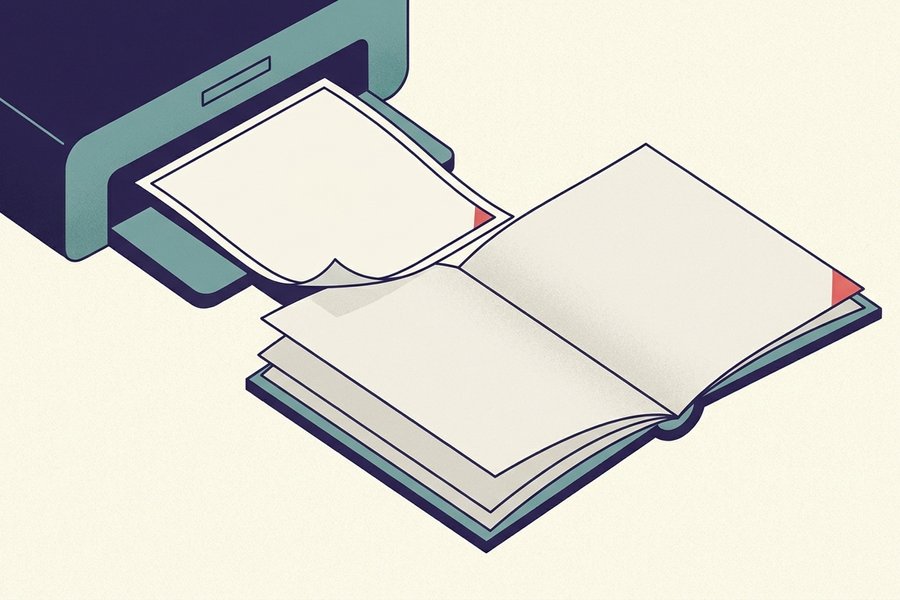
What the browser controls, and what we do not
This page has no PDF engine of its own. It formats your Markdown into styled HTML, then asks the browser to print that. Every modern browser ships a PDF writer inside its print dialog, which is why nothing needs installing. The trade is easy to state.
- What you gain: no install, no upload, no queue, no size limit, and output that matches the screen.
- What you give up: page geometry. Paper size, orientation, margins, scale and background colours are dialog settings, and we cannot choose them for you.
Switch background graphics on
This is the biggest single improvement you can make. Chrome keeps the setting off by default. With it off, your code blocks, quote bars and table header shading all print as plain white. Switch it on and the paper looks like the preview again.
Switch headers and footers off
Chrome and Edge stamp the page title, the URL, the date and a page number into the margins. The switch is called Headers and footers and sits under More settings. Firefox and Safari offer the same checkbox. Turn it off for a clean document, and leave it on when page numbers genuinely help.
Paper size, margins and scale
Pick A4 or Letter first, then orientation, then margins. Scale is the quiet fix: dropping from 100% to 90% often pulls a stray last line back onto the previous page. Change any of these and the dialog redraws its own preview straight away.
Tip: Set the dialog up once and print a test copy before you send anything. Browsers remember the last settings you used, so every document after the first costs you no extra clicks.
A worked example, and the settings that produced it
Here is a short document of the sort people actually print. It has a title, a subheading, a table, a bulleted list and a code block:
# Q3 Infrastructure Review

## Summary
Uptime held at 99.98% across all three regions.

| Region | Incidents | Mean recovery |
| :----- | --------: | ------------: |
| eu-west | 3 | 11 min |
| us-east | 1 | 4 min |

## Actions
- Move the staging cluster to the new image
- Add alerting for queue depth > 500

```bash
kubectl rollout restart deploy/api
```

> Full incident notes are in the ops wiki.
What comes out, and with which settings
Printed with the settings below, that becomes a single tidy page. You get a large bold title, a bordered table with the numbers right aligned, a proper bullet list, a shaded code block in a monospaced face, and an indented quotation at the end. The fence is tagged bash, so its keywords are coloured in the preview and on paper. None of the source symbols survive into the PDF.
Destination:          Save as PDF
Paper size:           A4        (Letter in the US)
Layout:               Portrait  (Landscape for wide tables)
Margins:              Default   (Custom for a denser page)
Scale:                100%      (90% rescues a slightly long page)
Background graphics:  On        (keeps code-block shading)
Headers and footers:  Off       (removes the URL and date stamp)
Watch where a greater-than sign sits
There are two of them in that source and they behave differently. The one inside the bullet is a comparison operator, so it prints as text. The one at the start of the final line is Markdown's blockquote marker, so it prints as an indented quotation.
Position is everything, and that is one of the small traps the complete Markdown guide walks through. If the idea of punctuation turning into formatting is still new, what Markdown is starts from the beginning.
Every route from Markdown to PDF, compared
Browser printing is not the only way to make a PDF, and it is not always the right one. This is an honest comparison of the realistic options, including the ones that beat this page.
| Route | Install needed | Layout control | Cost | Best for |
|---|---|---|---|---|
| This page (browser print) | None | Print dialog only | Free | One document, right now |
| MD Editor print button | None | Print dialog only | Free | Writing and exporting in one place |
| Chrome or Edge print to PDF | None | Margins, scale, headers | Free | The most predictable browser output |
| Safari Export as PDF | None | Fewer options, no scale | Free | Mac users who already have it open |
| Pandoc with LaTeX | Large, 1 GB or more | Total, book quality | Free | Theses, reports, real typesetting |
| Pandoc with weasyprint | Small Python package | Full CSS control | Free | Branded output from a stylesheet |
| Pandoc with wkhtmltopdf | Medium binary | Good, HTML based | Free | Batch jobs on a server |
| VS Code Markdown PDF extension | Editor add-on | Configurable, per project | Free | Exporting without leaving the editor |
| Typora export | Desktop app | Themes and custom CSS | Paid, one-off licence | People who write Markdown daily |
| Obsidian export to PDF | Desktop app | Theme dependent | Free for personal use | Printing notes from a vault |
| Upload-based online converters | None | Varies, often none | Free with limits | Rarely the right answer |
When Pandoc is worth the download
Pandoc with a LaTeX engine wins on four jobs: automatic page numbers, a generated table of contents, cross-references, and the same command running unattended every Monday. Nothing else really competes there. The price is a large install and a command line you have to learn.
When the browser route is already enough
For a single document that has to look clean and go out today, printing from the browser is not a compromise. It is faster, it costs nothing, and it works on a locked-down work laptop where you cannot install anything.
Careful: The last row of that table is a warning, not a suggestion. Uploading a confidential document to an unknown converter buys you nothing that your own browser cannot already do.
What goes wrong, and the fix
Almost every disappointing PDF traces back to one of the items below. The first group lives in the print dialog. The second group lives in your document, which means the preview above already showed you the problem.
Print dialog problems
- Code blocks and table headers print plain white. Background graphics is switched off. Turn it on under More settings and print again.
- The URL, date and page title appear in the margins. That is the browser's header and footer, not part of your document. Uncheck Headers and footers.
- A wide table is clipped at the right edge. Switch the layout to landscape, drop the scale to 85 or 90 percent, or cut columns. Six columns is roughly the comfortable limit for portrait A4.
- A heading is stranded at the bottom of a page. Page breaks are automatic. Adding a line of content above the heading, or a horizontal rule before a major section, usually nudges it over.
Document problems
- The PDF is full of hashes and asterisks. You printed the source instead of the rendered output. Print from the formatted panel, not from a text editor showing the raw
.mdfile. - Half the document is missing. Look for an unclosed code fence. Everything after a stray triple backtick is swallowed into a code block, which is why reading the preview first catches it.
- A long URL runs off the page. A bare URL is one unbreakable word, so it cannot wrap. Write it as
[a labelled link](https://example.com/very/long/path)and it stays clickable in the PDF. - An image dominates a whole page. Images print at their rendered size. Constrain one with
<img src="chart.png" width="450">before printing.
Tables cause more of this trouble than anything else. The tables guide explains how to restructure data that refuses to fit, and rebuilding the grid in the table generator makes a narrower version quick to test.
Received the file rather than wrote it? Open it in the Markdown viewer first, check it reads properly, and print from there.
Support data verified
Frequently Asked Questions
Is this Markdown to PDF converter free?
Yes. There is no account, no page limit and no watermark. The conversion uses your own browser's print engine, so there is nothing to pay for and nothing to install.
Is my document uploaded anywhere?
No. Your Markdown is formatted by JavaScript running in your browser tab and handed to the browser's print dialog. It is never sent to a server, which makes this safe for confidential drafts.
How do I change the page size or margins?
In the print dialog itself, not on this page. Paper size, orientation, margins and scale are browser settings. Choose A4 or Letter, then switch on Background graphics so code blocks keep their shading.
How do I remove the URL and date from the PDF?
Those come from your browser, not your document. Uncheck Headers and footers in the print dialog, usually under More settings. See converting Markdown to PDF for the other settings worth changing.
Are links still clickable in the saved PDF?
Yes. Browser print-to-PDF preserves hyperlinks as real annotations, so a [label](url) link stays clickable. Bare URLs written as plain text become clickable too, but they cannot wrap, so prefer labelled links.
Keep learning
Try the Editor
Open Editor